

Introduction
Gravity SMTP does not currently support sending from an alias with the Microsoft 365 / Outlook integration. This article explains what happens when the Default From Email is set to an alias, and how to send emails from the address you want.
How Alias Sending Works Today
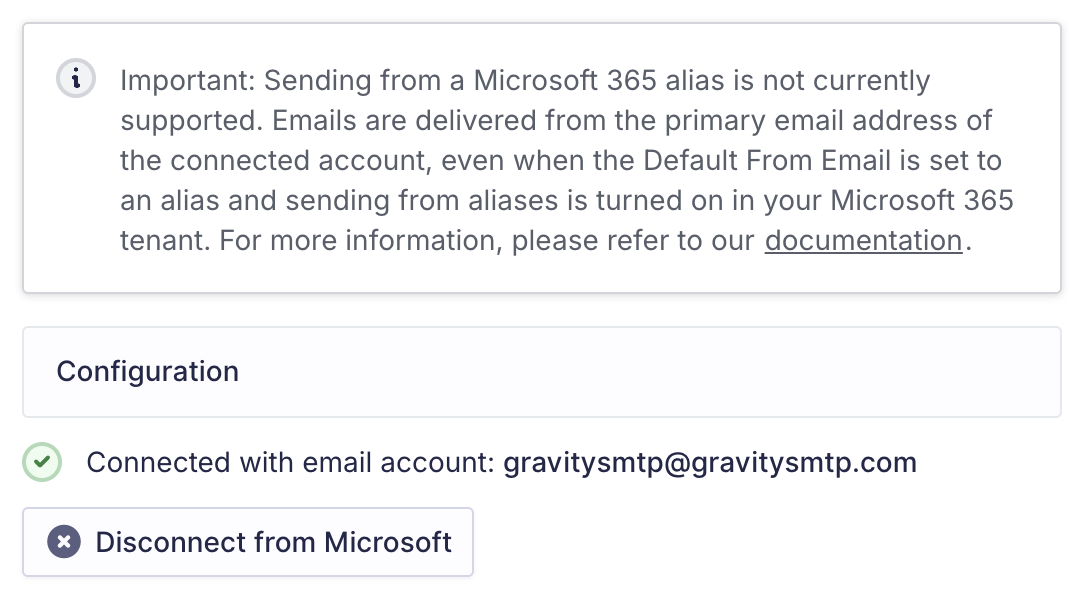
Emails are delivered from the primary email address of the connected Microsoft account, even when the Default From Email is set to an alias and sending from aliases is turned on in your Microsoft 365 tenant.
When the integration is connected, the Microsoft 365 / Outlook settings show this notice:
Email Log vs. Delivered Email
The Gravity SMTP Email Log shows the alias as the From address because it records the email as Gravity SMTP built it. The delivered email shows the primary address because Microsoft replaces the sender when the email is sent.
The Microsoft 365 Alias Setting
In Microsoft 365, set the tenant setting “Turn on sending from aliases” in the Exchange admin center under Settings → Mail flow.
Note: It is required to send from aliases in Microsoft 365, but enabling them does not make Gravity SMTP send from the alias. Refer to this Microsoft article for more information.
Sending From a Different Address
To send from a specific address, connect the Microsoft 365 / Outlook integration to the mailbox whose primary address should appear as the sender:
- Go to Gravity SMTP → Settings → Integrations, then open the Microsoft 365/Outlook settings.
- Disconnect the current account.
- Connect again by signing in with the Microsoft account associated with the mailbox you want to send from. Refer to Connecting to Microsoft 365 / Outlook for the full steps.
- Set the Default From Email to that mailbox’s primary address and save.