

Introduction
In order for Gravity SMTP to send messages from your SMTP.com account, you will need to provide the plugin with an SMTP.com API key. You must complete this step before configuring the SMTP.com Integration within Gravity SMTP. This article outlines the steps to generate a new API key in your SMTP.com account.
Generating a New API Key
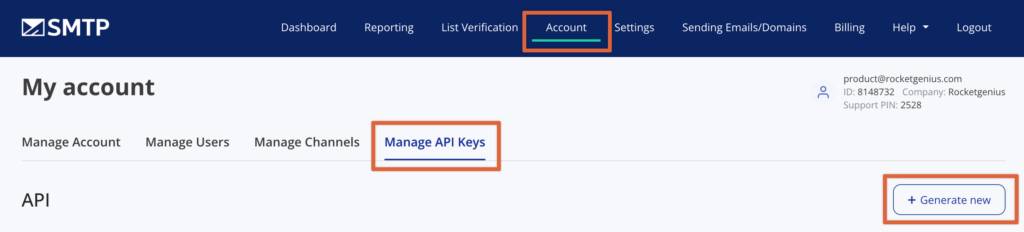
- Navigate to Account → Manage API Keys in your SMTP.com account.
- To create an API key, click Generate new.
- When prompted with confirmation, click Ok.
- Your key will be appended to the list of available API keys and can be copied from the KEY column.
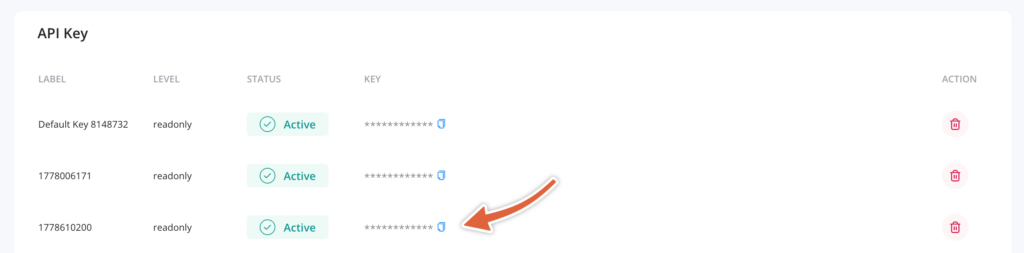
Note: When you create a new key, it gets a timestamp label and appears at the bottom of your list. Save it somewhere safe, you’ll need it to connect Gravity Forms to your SMTP.com account.
Provided that you have added and verified a domain, you are now ready to configure your SMTP.com Integration settings within Gravity SMTP.