

Introduction
Adding and verifying a domain from within your SMTP.com account is required in order to prove ownership of the domain from which outgoing messages will be sent. You must complete this step before configuring the SMTP.com Integration within Gravity SMTP. This article outlines the steps for authenticating a domain in your SMTP.com account by adding SPF, DKIM, and DMARC records. Reference SMTP.com’s email authentication documentation for more info and related articles.
Adding a New Domain
From within your SMTP.com account:
- Go to Sending Emails/Domains.
- Click the Sending Domains tab and then Add new sending domain.
- Enter the domain (or sub-domain) you plan to send from and click Save. This must be a domain you own.
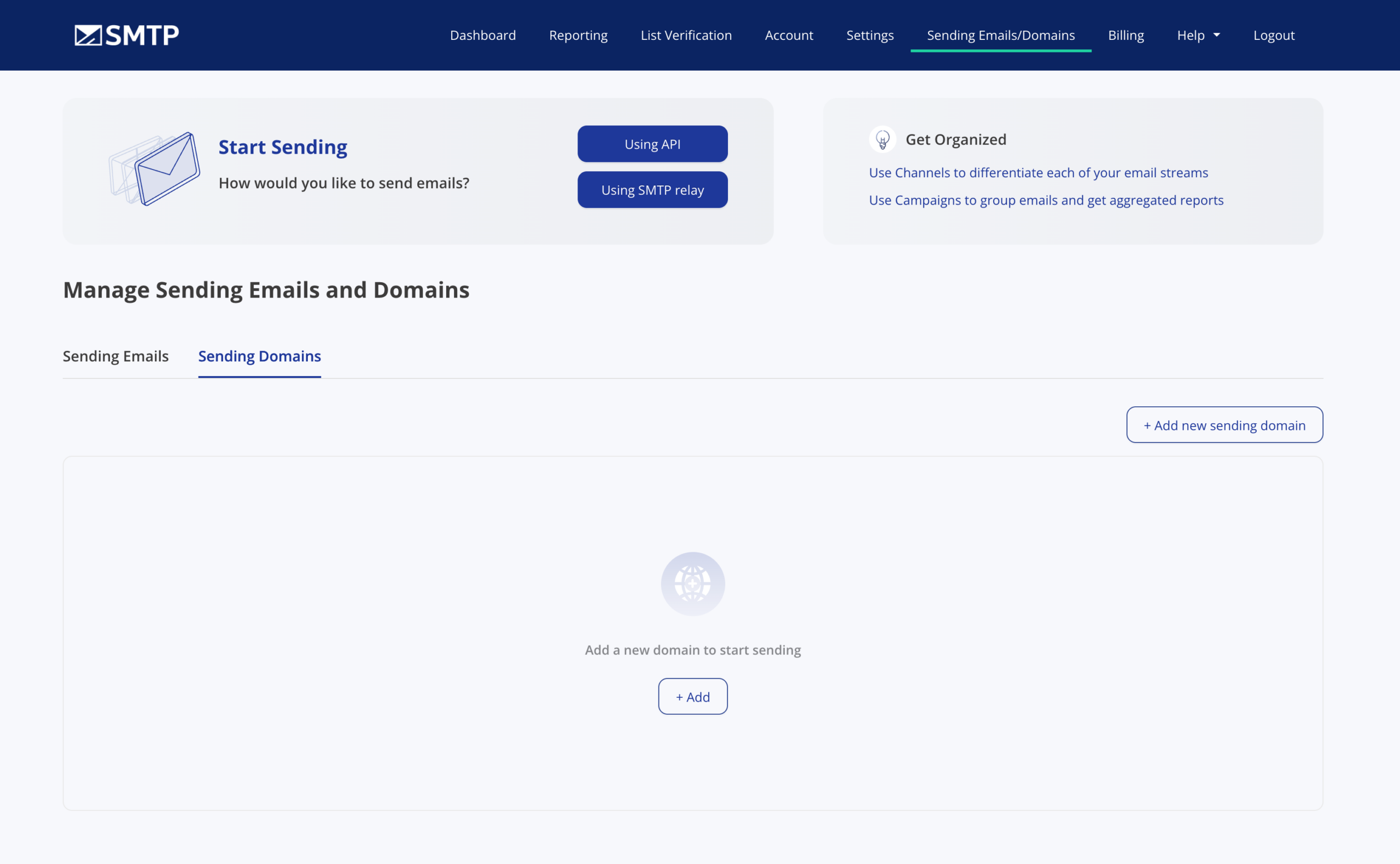
Be sure to note the domain name you are setting here as it will be needed when connecting Gravity SMTP to your SMTP.com account.
Verifying Your Domain
In order to verify ownership of your domain and enable use of this domain with SMTP.com, you will need to add DNS records for the domain you have just added. SMTP.com requires SPF, DKIM, and optionally DMARC records to be added to your DNS provider. Your next step is to visit your DNS provider for this domain and add each DNS record provided by SMTP.com.
Adding DNS Records
Configure SPF:
| Type | Name/Host | Value/Content | TTL |
|---|---|---|---|
TXT | @ | v=spf1 include:_spf.smtp.com ~all | 3600 |
If you already have an existing SPF record, edit it to include include:_spf.smtp.com rather than creating a new one.
Configure DKIM:
| Type | Name/Host | Value/Content | TTL |
|---|---|---|---|
TXT | Provided by SMTP.com | Provided by SMTP.com | 3600 |
Use the Name and Value provided by SMTP.com in your account dashboard for the DKIM key.
Configure DMARC (Recommended):
| Type | Name/Host | Value/Content | TTL |
|---|---|---|---|
TXT | _dmarc | v=DMARC1; p=none; | 3600 |
Add a DMARC TXT record to protect your domain from spoofing. Start with the policy p=none; to monitor without enforcing.
Verifying DNS Settings
After having added all DNS records for the domain, allow up to 72 hours for DNS propagation. You can check the domain status in the SMTP.com dashboard to verify that all records have been recognized and your domain is ready to handle messages.
Once all records have been verified, you are ready to obtain your API key.