

Introduction
This article provides the steps required to connect Gravity SMTP on your website with Cloudflare Email service.
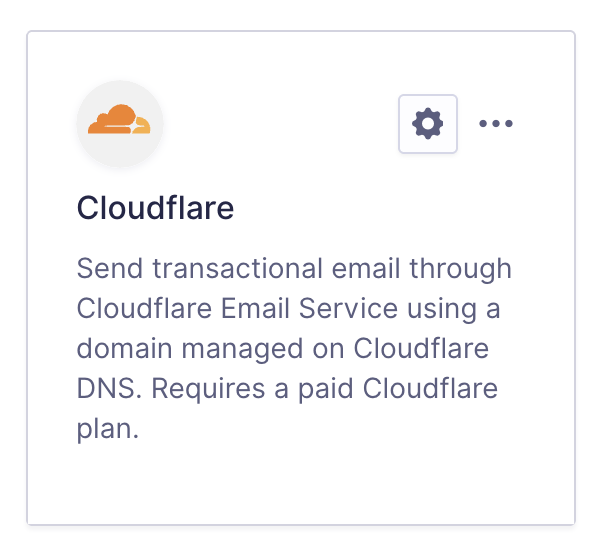
Cloudflare Email Service is a transactional email service that sends emails via Cloudflare’s infrastructure. The Cloudflare Email Service integration for Gravity SMTP lets you securely use this service, ensuring your emails are reliably delivered via Cloudflare’s network. Note that Cloudflare Email Service is currently in Public Beta, and API behavior and limits may change.
Pre-Requisites
- Your Cloudflare account must have a Workers Paid plan. Cloudflare Email Service is not available on the free plan.
- Your sending domain must be managed on Cloudflare DNS using Cloudflare’s nameservers. You cannot use Cloudflare Email Service with a domain hosted elsewhere.
- Adding your domain to Cloudflare DNS is not sufficient. You must also complete the Email Service onboarding flow in Cloudflare’s dashboard, which automatically creates the necessary DNS records.
- You’ll need to create a Cloudflare API Token with specific permissions.
Steps To Connect
- Add your domain to Cloudflare DNS.
Log in to your Cloudflare account, add your sending domain, and update your domain’s nameservers to Cloudflare’s nameservers. The domain must use Cloudflare’s nameservers for Email Service to function. - Onboard your domain in Cloudflare Email Service.
In the Cloudflare dashboard, go to Email Sending → Onboard Domain and complete the onboarding flow. Cloudflare will automatically create the required SPF and DKIM records on the cf-bounce subdomain. Refer to this article for more information. - Obtain your Cloudflare Email API Token
This will be required in settings to create the link between Cloudflare Email and your website via Gravity SMTP. Refer to this help guide for instructions on how to find that API Token in your Cloudflare account. - Copy your Account ID from the Cloudflare dashboard.
Go to any zone overview page; your Account ID appears in the right sidebar.

- Complete the Gravity SMTP settings.
Go to Gravity SMTP → Settings → Integrations and click the + icon. Search and select Cloudflare Email. This will add it to your integrations and display its settings fields, which you’ll need to complete to finish setup. See this help guide for a description of these settings. - Click the “Save Changes” button.
After saving, you’ll return to the Settings card page, where the new integration card will appear in the list. You can then test using the Gravity SMTP “Send a Test” Tool.
Once the integration is set up, it will be ready for use. You can verify the connection with a test email and send it through Cloudflare Email Service when needed.
Cloudflare Email Limits
Cloudflare Email Service enforces the following limits on email sending:
- The number of recipients per email is capped at 50 across the To, CC, and BCC fields.
- Emails exceeding this limit will not be sent. Message size is limited to 5 MiB total, including all attachments.