

Overview
Email Routing in Gravity SMTP allows you to create conditional rules that determine which integration sends each email. Instead of using a single integration for all outgoing mail, you can route emails to different integrations based on conditions such as sender address, email source, or other email attributes.
What Is Email Routing
Email Routing gives you granular control over which email integration handles each message. Rules are evaluated from top to bottom, and the first matching rule is used to send the email.
Common scenarios include sending form notifications through one integration while routing transactional emails from another source through a different integration, or using a separate integration based on the recipient domain. You can also route emails based on size, volume, or sender address, ensuring that emails requiring specific handling reach the appropriate integration.
Note: Email Routing requires at least 2 integrations to be configured and active. If you have fewer than 2 active integrations, the Email Routing settings will not be available.
Where To Find These Settings
The routing options can be found by clicking the Settings main menu option and then choosing Email Routing.
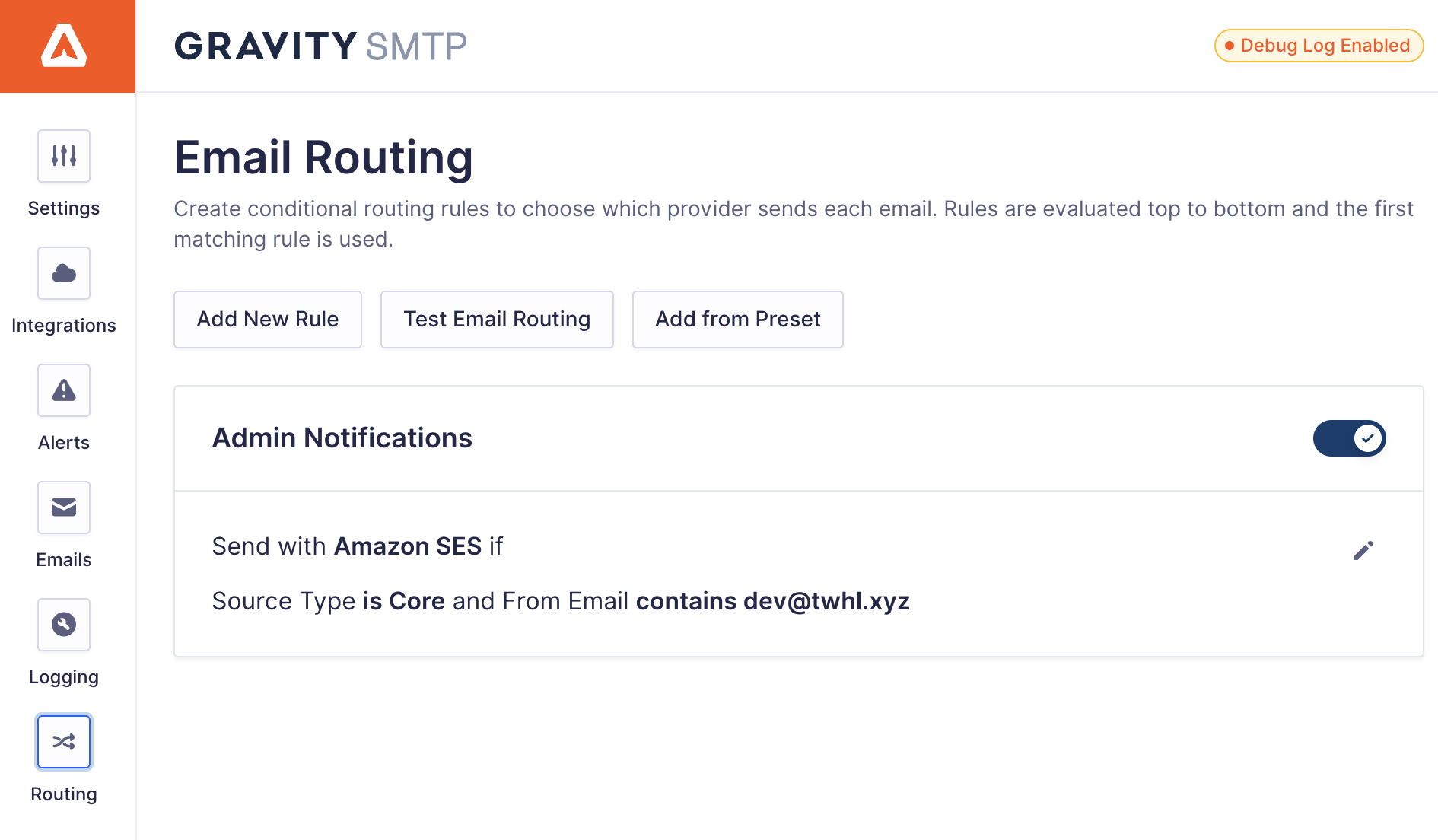
Email Routing Settings Reference
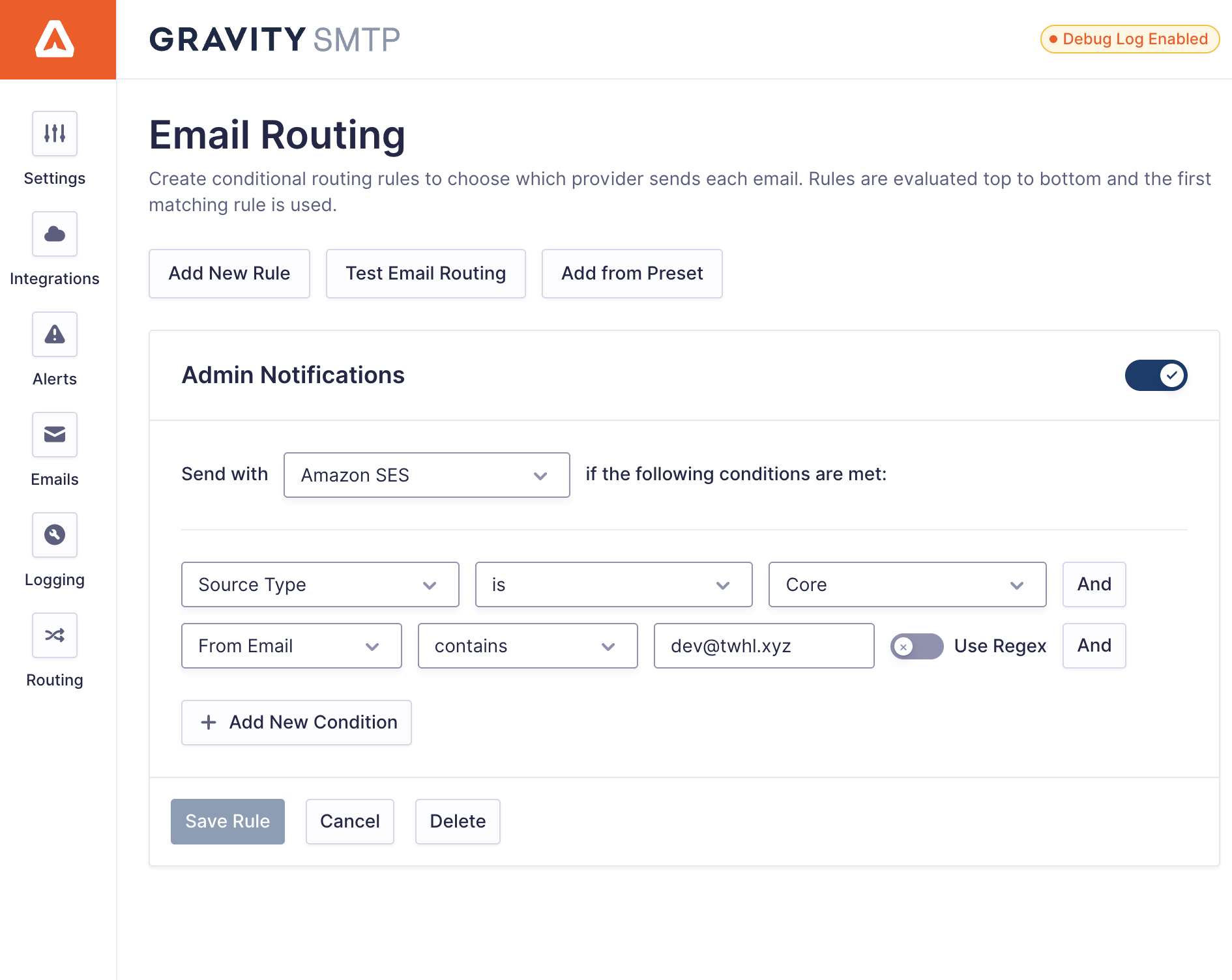
| Operator | Description |
|---|---|
| is | Exact match to the specified value. |
| is not | Does not match the specified value. |
| contains | Value includes the specified text. |
| does not contain | Value does not include the specified text. |
| starts with | Value begins with the specified text. |
| ends with | Value ends with the specified text. |
| Use Regex | Enable regex pattern matching for the condition. When enabled, the value field accepts a regular expression pattern. See Regex Examples. |
Rule Evaluation
Rules are evaluated in order from top to bottom. When an email is sent, Gravity SMTP checks each rule against the email’s attributes. As soon as a rule matches all its conditions, it is applied, and subsequent rules are not evaluated. If no rules match, the email falls back to the default integration configured in your main settings.
Presets
Email Routing includes preset routing configurations to help you get started. You can add any of these presets to your routing rules and customize them as needed.
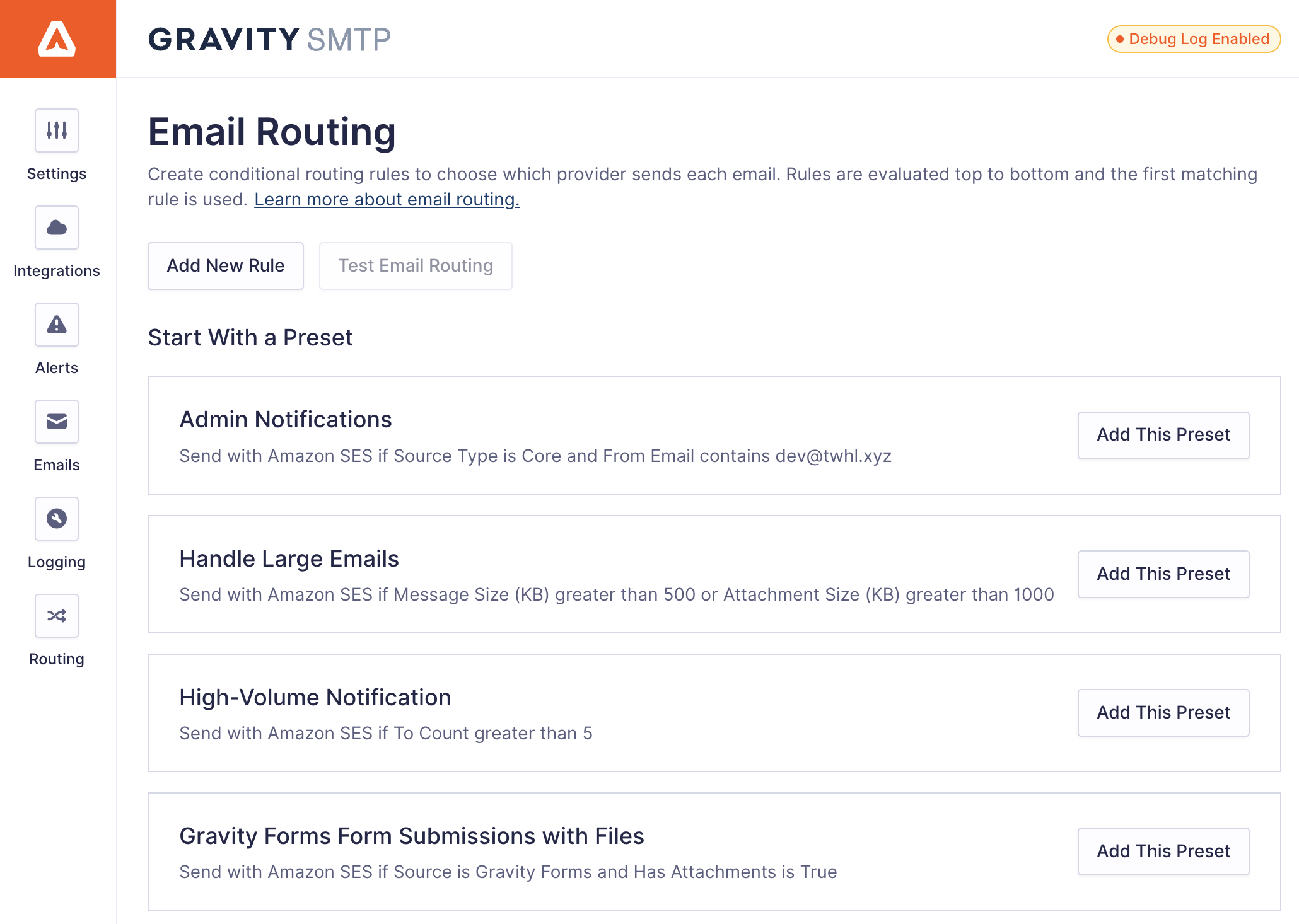
| Preset | Description |
|---|---|
| Admin Notifications | Routes emails from your site’s core system where the sender address contains a specified domain. Useful for separating admin notifications from user-facing mail. |
| Handle Large Emails | Routes emails that exceed size thresholds to a specific integration. Matches emails with message size greater than 500 KB or attachment size greater than 1000 KB. |
| High-Volume Notification | Routes emails sent in high volume to a dedicated integration. Matches when more than 5 emails are sent in a single send operation. |
| Gravity Forms Form Submissions with Files | Routes form submission emails from Gravity Forms that contain file attachments to a specific integration. |
Testing Your Email Routing Rules
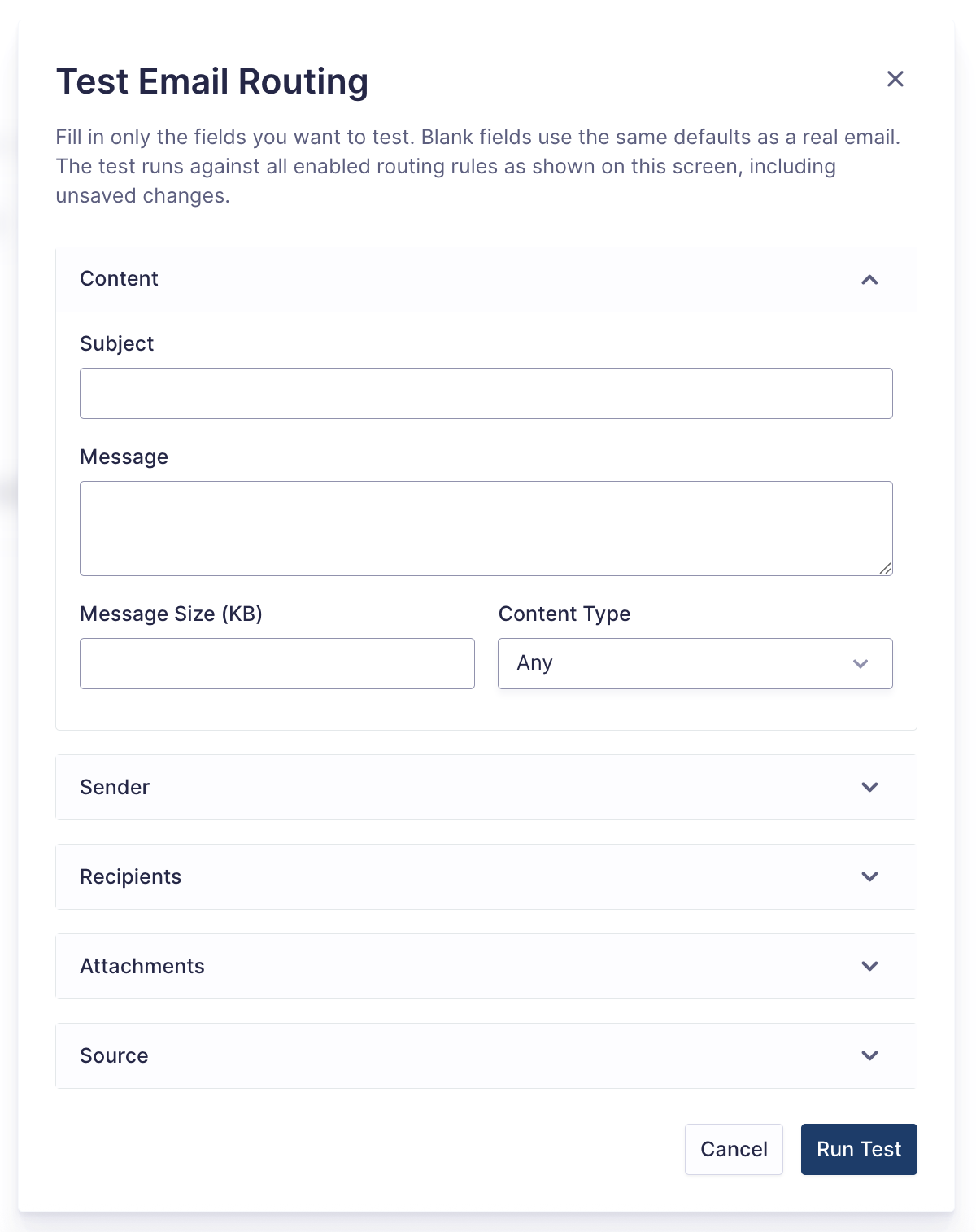
You can test your email routing rules before they go live by using the Test Email Routing feature. This allows you to simulate an email against your current rules and see which rule and integration would handle it. The test evaluates rules in the same order they would be applied to live emails, making it easy to verify your routing logic is working as intended.
Frequently Asked Questions
Which presets are available?
Four presets are always available: Admin Notifications, Handle Large Emails, High-Volume Notification, and Gravity Forms Form Submissions with Files. An additional WooCommerce Priority Orders preset appears if WooCommerce is active on your site. Presets are fully editable after you add them. Treat them as starting points rather than fixed templates.
What happens if the routed integration fails to send?
If the integration chosen by your routing rule fails to send an email, Gravity SMTP automatically attempts to send through a backup integration. If you have one configured, it will be tried once. If the backup also fails (or no backup is set), the email send is aborted and logged in the Email Log for review.
What does the “Invalid” badge mean?
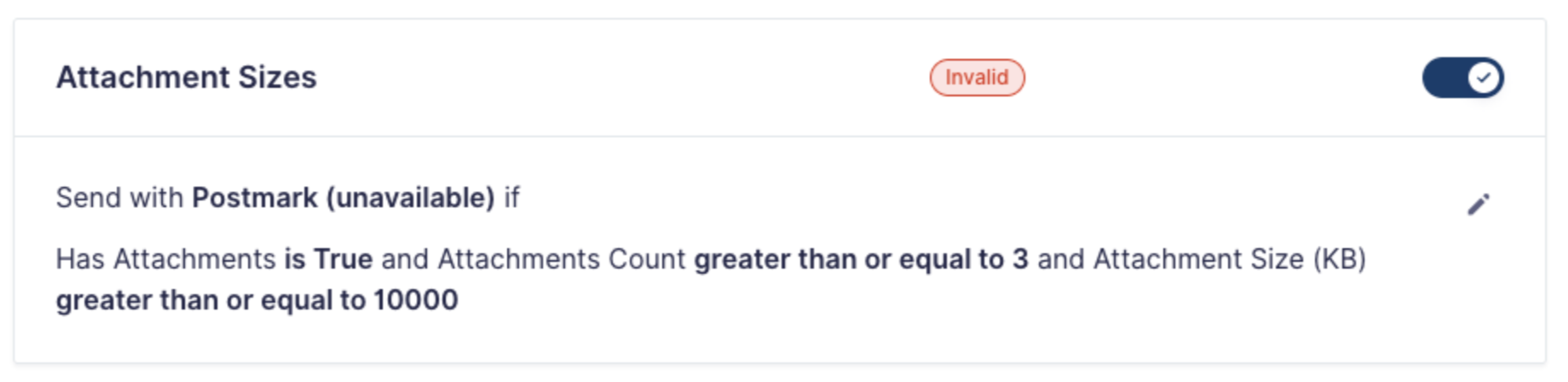
A rule shows an Invalid badge when its assigned integration has been deactivated or unconfigured. Invalid rules are skipped during email sending until you edit them and assign a currently active integration. This prevents emails from failing due to a missing integration.
Who can edit routing rules?
Only users with the gravitysmtp_edit_routing capability can create, edit, or delete rules. Administrators have this capability by default. Users without this capability can view the Routing screen but cannot modify rules.
How do I troubleshoot routing issues?
Enable the Debug Log to record detailed routing information. The debug log captures rule matches, backup integration fallbacks, and save attempts. Check the debug log when an email routes to an unexpected integration or when rule changes don’t seem to take effect.
Do disabled rules affect email sending?
No. Disabled rules are skipped entirely during email sending and in the Test Email Routing modal. You can disable a rule without deleting it if you want to keep it for later use.
Regex Examples
When Use Regex is enabled on a condition, the value is treated as a pattern instead of exact text. This is useful when a single condition needs to match several possible values or a specific format.
| Field | Pattern | Matches |
|---|---|---|
| Subject | Order|Invoice|Receipt | Any of these words, instead of three separate rules |
| Subject | Order #\d{4,} | An order number with 4 or more digits |
| From Email | ^(no-?reply|notifications?)@ | Common automated sender addresses |
| From Email | @example\.(com|net|org)$ | A whole family of domains |
| To | @partner\.com | Any recipient at that domain |
Test any pattern in the Test Email Routing modal before enabling the rule.